> For the complete documentation index, see [llms.txt](https://manual.bubble.io/llms.txt). Markdown versions of documentation pages are available by appending `.md` to page URLs; this page is available as [Markdown](https://manual.bubble.io/help-guides/maintaining-an-application/database-maintenance/database-copy-and-backups.md).

# Restoring database backups

This section covers how you can copy the contents of your database, as well as restore it to a snapshot of what it looked like at a specific date and time

{% hint style="danger" %}
The actions described below can potentially rewrite all the contents of your database. Be careful when using these features, and double-check that your settings are correct before you go ahead. Copying and restoring large databases can take some time to finish.
{% endhint %}

Bubble keeps a continuous backup of both of your app's databases, development and live. Every change is recorded as it happens, so if data is deleted or changed by mistake, you can restore the database to how it looked at an earlier point in time, down to the second.

This article explains how restoring works, what to think about before you restore, and how to do it.

## How restoring works

When you restore, you pick a database, a data type, and a point in time. Bubble then returns that data to how it looked just before the time you chose. Every change made at that exact time or later is undone, including records that were created, changed, or deleted.

<table><thead><tr><th width="221.59765625">Property</th><th>What it does</th></tr></thead><tbody><tr><td><em>Database to restore</em></td><td>Choose whether to restore your development or live database</td></tr><tr><td><em>Data type to restore</em></td><td>Choose which data type to restore</td></tr><tr><td><em>Restore to</em></td><td>The date and time to go back to. Your data returns to how it looked just before this time.</td></tr><tr><td><em>Type to confirm</em></td><td>A confirmation step, so you don't restore by accident</td></tr></tbody></table>

Restoring only affects *data*. Your data types, fields, and option sets are part of your app's structure, and they aren't changed by a restore.

### How far back you can go

How far back you can restore depends on your app's plan. The **Restore database** popup shows how many days your plan lets you go back.

{% hint style="info" %}
If you've deleted your database change history, you can only restore to points after the deletion. See Delete all database change history for details.
{% endhint %}

## Before you restore

Restoring can't be undone in the usual way, so it's worth taking a moment to prepare:

<table><thead><tr><th width="284.56640625">What to check</th><th>Why it matters</th></tr></thead><tbody><tr><td>The time of the mistake</td><td>Pick a time just before the unwanted change happened. Anything after it, including changes you want to keep, is undone too.</td></tr><tr><td>Which database you're restoring</td><td>The live database holds your users' data. Make sure you've selected the right one.</td></tr><tr><td>Related data types</td><td>If you restore only one data type, its records may no longer match records in other data types they're linked to.</td></tr><tr><td>Changes you want to keep</td><td>Consider exporting the current data as a CSV or JSON file first, so you have a copy of the latest changes.</td></tr></tbody></table>

{% hint style="warning" %}
Large databases can take a long time to restore.
{% endhint %}

## Restore your database

{% stepper %}
{% step %}

#### Open the App data section

In the editor, go to the **Data** tab and open the **App data** section.
{% endstep %}

{% step %}

#### Open the restore options

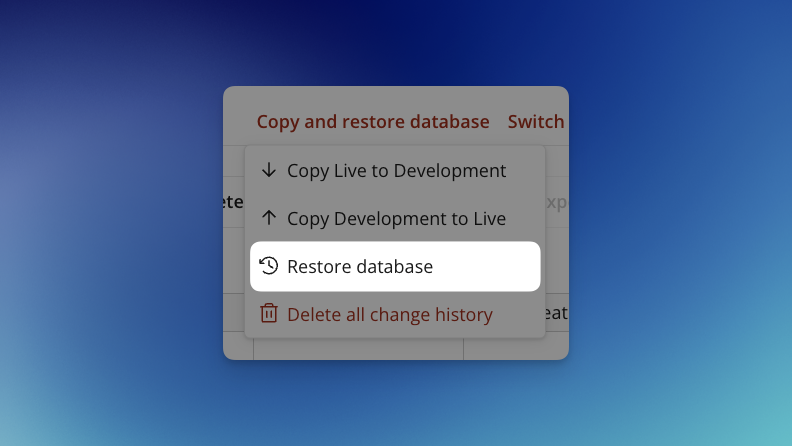
Click **Copy and restore database** in the upper right corner, then select **Restore database**.

<figure><img src="https://34394582-files.gitbook.io/~/files/v0/b/gitbook-x-prod.appspot.com/o/spaces%2F-M5sbzwG7CljeZdkntrL%2Fuploads%2FKbf5Rw4d5pFalfNIpgCY%2Frestore-database.png?alt=media&amp;token=138d77d2-bde3-413d-9406-bf552a242312" alt=""><figcaption></figcaption></figure>
{% endstep %}

{% step %}

#### Choose the database

<figure><img src="https://34394582-files.gitbook.io/~/files/v0/b/gitbook-x-prod.appspot.com/o/spaces%2F-M5sbzwG7CljeZdkntrL%2Fuploads%2FV8EbLcLp7ZZbaCyDvhjm%2Frestore-database.png?alt=media&amp;token=9957a532-67fd-4209-bde0-62bc16b0f873" alt=""><figcaption></figcaption></figure>

Under *Database to restore*, select **Development** or **Live**.
{% endstep %}

{% step %}

#### Choose the data type

Under *Data type to restore*, select the data type you want to restore.
{% endstep %}

{% step %}

#### Set the time to restore to

Under *Restore to*, enter the date and time you want to go back to. Your data returns to how it looked just before this time.

To start from the current moment and adjust from there, click **Use current time**.
{% endstep %}

{% step %}

#### Confirm the restore

Type the confirmation text shown under *Type to confirm*. It's `Restore Development` for the development database, or `Restore Live` for the live database.
{% endstep %}

{% step %}

#### Restore

Click **Restore database**. Depending on the size of your database, this can take a while.
{% endstep %}
{% endstepper %}

## FAQ: Restoring your database

<details>

<summary>Does restoring one database affect the other?</summary>

No. You choose which database to restore, and the other one isn't changed.

</details>

<details>

<summary>Why can't I go back as far as I'd like?</summary>

How far back you can restore depends on your app's plan. If you've deleted your database change history, you can also only restore to points after the deletion.

</details>

<details>

<summary>Can I restore a single record?</summary>

No. Restoring affects all records of the data type you select. To recover a single record, you can restore to a test copy of the data, for example by copying it to development, and then move the record back manually.

</details>