# Data types and fields

{% hint style="info" %}
We also have multiple guides on how to set up your database structure based on what kind of app you are building. You can take a look at these in our article series on *Database structure by app type*.

Article series: [Database structure by app type](https://manual.bubble.io/~/changes/1101/help-guides/data/the-database/database-structure-by-app-type)

You may also be interested in our introductory guide to planning your database structure:

Article: [Database structure](https://manual.bubble.io/~/changes/1101/help-guides/getting-started/building-your-first-app/database-structure)
{% endhint %}

## Data types

The database consists of different **data types** that you as the developer plan and set up. Data types are like containers that hold specific types of information and each data type is made up of **fields** where that information is stored.

For example, in a sports league management system, one data type might be used to hold information about teams, such as their name, coach, and roster of players. Another data type could be used to hold information about games, such as the date, location, and final score.

With our visual editor, you have complete freedom to structure, manage, and connect data types as you want.

Let's first have a look at how you create new data types:&#x20;

### Creating data types

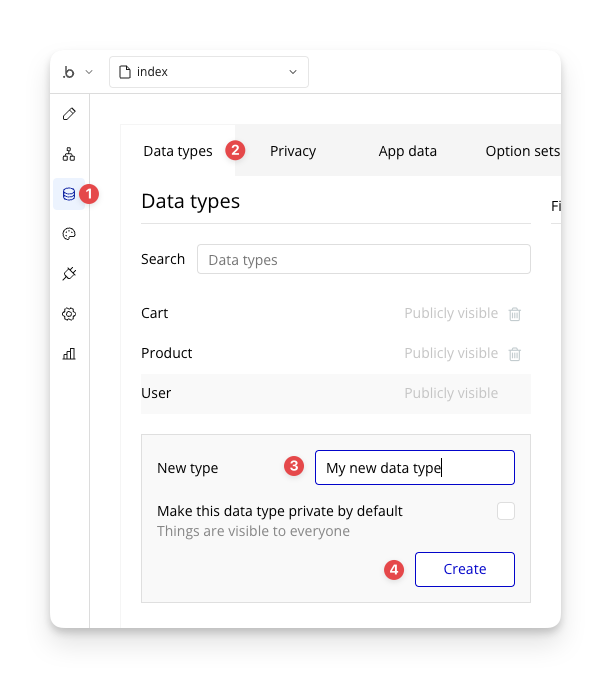
You can create up to 1,000 custom data types. To create one, follow the steps below:

<figure><img src="https://34394582-files.gitbook.io/~/files/v0/b/gitbook-x-prod.appspot.com/o/spaces%2F-M5sbzwG7CljeZdkntrL%2Fuploads%2FBwkwU2t0gr0c8ZibNLu4%2Fnew-data-type-bubble.png?alt=media&#x26;token=4df885e7-49d2-4628-aa47-722deb3680e4" alt=""><figcaption></figcaption></figure>

1. First, navigate to the **Data tab** in the Bubble editor
2. Then, go to **Data types**
3. In the field labelled *New type,* provide a **name**. Don't worry, you can change[^1] this at any later time.
4. Click the **Create** button

The new data type will be added to the *Custom data types* list.

#### Naming Data Types

Bubble lets you name your Data Types as you please, even using characters such as space. While you are free to name them as you please, it can be useful to follow a few guidelines:

* **Use unique names:** While Bubble does support duplicate names, giving your data types unique names makes it easier to identify the correct one. Keep in mind that this can affect [Option sets](#user-content-fn-2)[^2] as well, as Option sets and data types will often show up in the same lists.
* **Use singular names:** Bubble automatically pluralizes names. For example, if you name your data type *Event*, Bubble will automatically refer to it as Events whenever it's appropriate

<details>

<summary><mark style="color:blue;">Video lessons</mark></summary>

* [Naming your data types and fields](https://www.youtube.com/watch?v=XueeVCReuI8)

</details>

## Fields

{% hint style="warning" %}
When deleting fields, there are some security precautions you should take to protect sensitive data. Read more about this in the [expandable box below](#important-information-when-deleting-fields).
{% endhint %}

Each data type consist of **fields** that hold different kinds of information. These fields are formatted in specific ways and can only hold the type of information that they are set up to contain.

To illustrate, think of a phone book: a *Contact* has different fields for name, date of birth and email address and the format of these fields remains constant: name and email address will always contain text and date of birth will always contain a date.

The field is where the information saved to a data type is actually stored.

Bubble has the following built-in field types:

* **text**\
  A string a text that can contain any kind of character
* **number**\
  A numerical value, which can be a whole number or a decimal.\
  \
  Bubble formats numbers in US standard format, meaning that the period (.) is used to separate the integer part from the fractional part of a number (e.g., 1234.56).
* **numeric range**\
  A range consisting of a low and a high value, such as 5-10
* **date**\
  Contains a date and time
* **date range**\
  A range of dates, such as 1/1/1970 - 1/15/1970
* **date interval**\
  A Date interval quantifies the difference between two dates. It/s the number of days/hours/minutes/etc between them
* **yes / no**\
  A value that can be true or false (sometimes called a boolean)
* **file**\
  The URL of a file
* **image**\
  The URL of an image file
* **geographic address**\
  A Google Maps formatted address
* **Data type**\
  Any data type that you can set up can also be a field type

This is where the flexibility of Bubble's database becomes apparent: by creating custom data types and populating those types with custom fields, we can set up a structure for almost any thinkable scenario.

The last item on the list above is particularly significant. That's because every data type we create can be used to format a field in a different data type, which is how we interconnect them.

### Storing a list of values

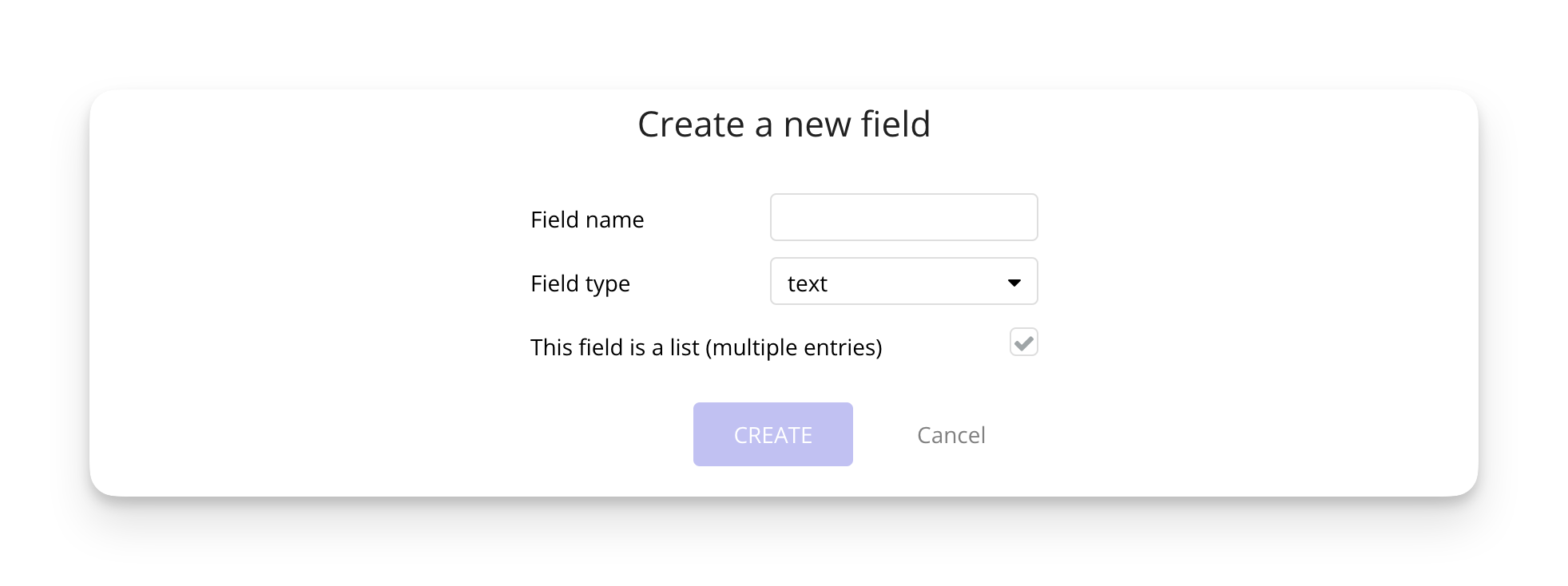
Each field can also be set up to store a *list* of values. For example, if you want to store more than one text value you can check the box labelled *This field is a list (multiple entries).* This lets you add new values that make up a list, such as *Red, Blue, Green, Yellow*.

<figure><img src="https://34394582-files.gitbook.io/~/files/v0/b/gitbook-x-prod.appspot.com/o/spaces%2F-M5sbzwG7CljeZdkntrL%2Fuploads%2FVoHTfisdBxYrw50Son4F%2Fcreate-new-field-list%402x.png?alt=media&#x26;token=1fbf12e7-0851-4e14-b240-f5e5bee6b540" alt=""><figcaption><p>Checking the option above lets you store a list of values instead of a single value.</p></figcaption></figure>

Any type of field can contain lists, including custom data types. This way you can reference multiple things, such as the tags connected to a blog post or the products in a cart.

<details>

<summary><mark style="color:blue;">Video lessons</mark></summary>

* [How to create a field as a list](https://www.youtube.com/watch?v=w2xJ_RhAfMk)

</details>

### Built-in fields

In addition to the fields that you choose to add to a data type, Bubble will also set up the fields below:

#### Unique ID

The Unique ID is a 32-character alphanumeric[^3] string that identifies a specific thing[^4] in your database. The Unique ID (sometimes shortened to UID) is generated automatically when the thing is created and cannot be edited.

A Unique ID looks like the example below:

```
1651238619517x600101118159717500
```

#### Date created and Date modified

These two fields are also automatically populated by Bubble and are stored in the *date* format. The Date created field never changes, and the Date modified field automatically updates any time any changes are made to the Thing.

#### Slug

The slug field lets you set up a user-friendly and search engine optimized URL for the thing. When you [load data onto a page](#user-content-fn-5)[^5], you can instruct Bubble to use this string of text as the last part of the page's URL, to give each thing a unique URL.

For example, if the name of a Product is "A Beginner's Guide to Bubble," the corresponding slug might be "a-beginners-guide-to-bubble". The slug is then appended to the page URL such as:

```url
https://www.myapp.com/products/la-beginners-guide-to-bubble
```

This lets you set up user-friendly and search engine optimized URLs for different data types such as articles, blog posts, products, and other types of content.

Changing the slug on a thing cannot be done with the [*Make changes to a thing*](#user-content-fn-6)[^6] action, but needs to be done with the [*Set a thing's slug*](#user-content-fn-7)[^7] action.

### Custom field types

Any data type that you create can also be used as a field type. For example, say you have a data type called **Cart**, and to this cart you should be able to add **Products.** You can set up a field on the Cart data type, check *This field is a list* and choose the Product data type as Field type:

For instance, we can use a data type for a shopping cart to connect it to a data type for a user. By doing that, we can determine who the owner of that particular cart is.

<details>

<summary><mark style="color:blue;">Video lessons</mark></summary>

* [How to add a data type as a custom field](https://youtu.be/4txlG9nwr1E)

</details>

### Creating fields

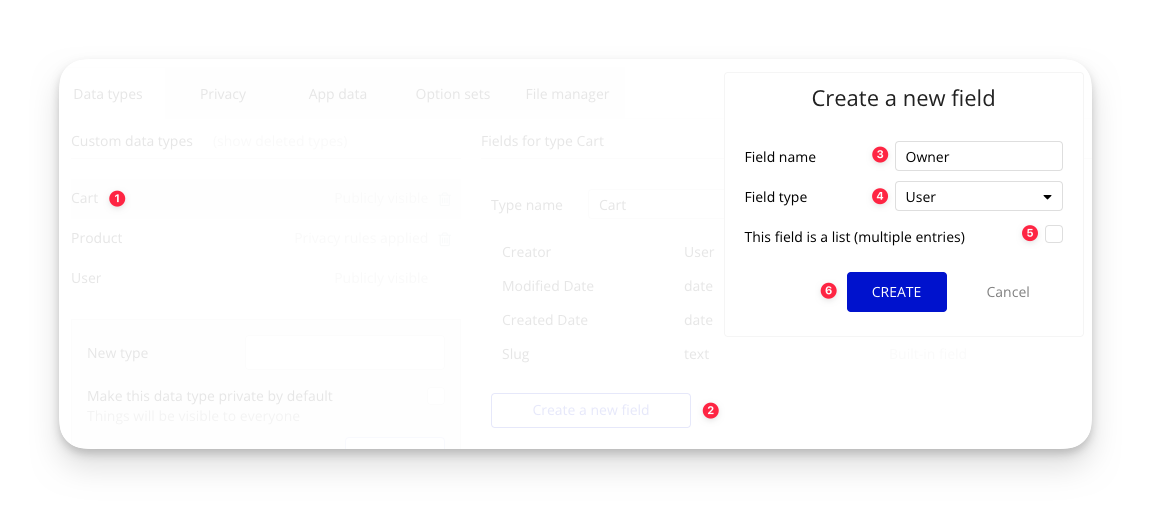
After you have created your data type, you can set up the fields you need:

<figure><img src="https://34394582-files.gitbook.io/~/files/v0/b/gitbook-x-prod.appspot.com/o/spaces%2F-M5sbzwG7CljeZdkntrL%2Fuploads%2FmLLQxYdlWvOPbUxqFRXO%2Fcreate-field.png?alt=media&#x26;token=bc665af6-0b5b-4dd6-9753-184971b051d4" alt=""><figcaption><p>Click the image to see a bigger version</p></figcaption></figure>

1. First, select the data type on which you want to create a new field (Cart)
2. Click the *Create a new field* button at the bottom of the existing fields
3. Give the field a fitting name
4. Choose the type of data you want to store in that field from the list above or from your existing data types. In this example we have selected *User* since we want the owner of the Cart to be a registered user
5. Pick whether the field should contain a *list* of the selected data or a single item. In this case we want each cart to just have one owner, so we don't check the box.

Let's look at some examples of how varying app types may require different data types:

## Examples

### Data types

We'll go over three different examples to see how you can set up data types that cater to different applications. Note that the examples aren't intended to be a blueprint or the best practice for these categories. Instead, they serve to demonstrate the versatility of data types in various scenarios.

#### Example 1: eCommerce store

In an eCommerce store, we might need three data types to handle basic functionality. We want *Users* to be able to add *Products* to a *Cart:*

<table data-view="cards"><thead><tr><th></th></tr></thead><tbody><tr><td><strong>Product</strong></td></tr><tr><td><strong>Cart</strong></td></tr><tr><td><strong>User (built in)</strong></td></tr></tbody></table>

#### Example 2: Sports league management app

Managing a sports league could require a bit more complicated setup: a league consists of different *Clubs,* that each have a few *Teams* with *Players*. The players play *Games.*\
\
The *Player* data type is actually the built-in *User* data type. Since Bubble already provides this data type that allows users to log in and use the app, it makes sense to use it. Keep in mind that the *User* data type cannot be renamed. Therefore, we're simply clarifying that it's referred to as a *Player* in this particular context.

<table data-view="cards"><thead><tr><th></th></tr></thead><tbody><tr><td><strong>League</strong></td></tr><tr><td><strong>Club</strong></td></tr><tr><td><strong>Team</strong></td></tr><tr><td><strong>Game</strong></td></tr><tr><td><strong>Player (user - built in)</strong></td></tr></tbody></table>

#### Example 3: Blog

A blog can have a very simple setup consisting of blog posts, tags that let you search for posts of a specific type and authors. Again, the *Author* type is the *User* type but to better convey its intended purpose, it's referred to as "Author"

<table data-view="cards"><thead><tr><th></th></tr></thead><tbody><tr><td><strong>Blog post</strong></td></tr><tr><td><strong>Tags</strong></td></tr><tr><td><strong>Author (user - built in)</strong></td></tr></tbody></table>

### Adding the fields

#### Example 1: eCommerce store

<table data-view="cards"><thead><tr><th></th><th></th></tr></thead><tbody><tr><td><strong>Product</strong></td><td>Name (text)<br>Description (text)<br>Image (image)<br>Price (number)</td></tr><tr><td><strong>Cart</strong></td><td>Owner (user)<br>Products (list of Products)</td></tr><tr><td><strong>User (built in)</strong></td><td>Name</td></tr></tbody></table>

#### Example 2: Sports league management app

In our Sports league management app we can really see how data types are referenced downward in the hierarchy: a Player is a part of a Team, which is a part of a Club, which is a part of a League.

<table data-view="cards"><thead><tr><th></th><th></th></tr></thead><tbody><tr><td><strong>League</strong></td><td>Name (text)</td></tr><tr><td><strong>Club</strong></td><td>Name (text)<br>League (League)</td></tr><tr><td><strong>Team</strong></td><td>Name (text)<br>Club (Club)</td></tr><tr><td><strong>Player (user - built in)</strong></td><td>Name<br>Email (built-in)<br>Team (Team)</td></tr></tbody></table>

#### Example 3: Blog

On our blog website we can return to a simpler structure. We have the blog posts, on which we need to store 1) the header and post content, both texts, 2) The User who wrote it (the author) and the list of Tags (such as *Politics* and *Tech).*

<table data-view="cards"><thead><tr><th></th><th></th></tr></thead><tbody><tr><td><strong>Blog post</strong></td><td>Header (text)<br>Post (text)<br>Author (User)<br>Tags (list of Tags)</td></tr><tr><td><strong>Tag</strong></td><td>Name</td></tr><tr><td><strong>Author (user - built in)</strong></td><td>Name<br>Email (built-in)</td></tr></tbody></table>

As we've explored, setting up custom data types and fields lets you adapt your database to suit your project. In simple terms, data types are the containers that define the type of data you want to manage, while fields contain the various types of information stored within that data type.

If we were working on a phone book, the data type would be *Contact* and the fields would *Name, Email address* and *Phone number*.

<details>

<summary>Important information when deleting fields</summary>

When you delete a field from a data type in your database, the data stored in that field is **not** automatically removed. While the field no longer appears in the editor and cannot be used in workflows or design elements, the underlying data remains in your database and may still be retrievable through API calls or visible in network responses.

This behavior helps preserve the functionality of any privacy rules that may reference the deleted field, even if those references are no longer visible in the editor. However, there are important implications to keep in mind:

**Key points to understand:**

* **Privacy rules still apply:** If a privacy rule previously referenced the field, it will still be enforced at runtime, even though it no longer appears in the editor. Because these rules are no longer visible or editable once the field is deleted, we strongly recommend either clearing the field’s data beforehand or carefully reviewing your privacy rules to ensure the data remains protected before deletion.
* **The data is not erased:** Deleting a field only removes it from the editor. The values associated with that field still exist in the database.
* **The field can still be accessed via API:** API responses (such as through the Data API) may still return the field's values.
* **No WU charge:** Bubble does not charge workload units (WU) for data retrieved from deleted fields.
* **Risk of unprotected data:** If no privacy rule currently protects the field, the data could become accessible to unauthorized users through API responses or network activity.
* **App optimization:** The [app optimization](#user-content-fn-8)[^8] feature does *not* remove this data.

**Best practice:**

Before deleting a field, we recommend the following:

1. **Clear any sensitive data** from the field before deletion, such as through a backend workflow or manual database edit.
2. **Review privacy rules** to understand whether the field is protected and whether protections need to be adjusted elsewhere.
3. **Test your app and API responses** to ensure no unintended data exposure occurs.

This behavior is designed to avoid silently breaking privacy rules when fields are removed, but it also means that extra care should be taken when deleting fields that store sensitive information.

</details>

## Other ways to learn

<details>

<summary><mark style="color:blue;">Video lessons</mark></summary>

* [The data tab](https://www.youtube.com/watch?v=z0L8vFsCwkk)
* [Creating the data structure](https://www.youtube.com/watch?v=2NO1ET1bMLM)
* [Naming your data types](https://youtu.be/XueeVCReuI8)
* [How to add a data type as a custom field](https://youtu.be/4txlG9nwr1E)
* [How to create a field that holds a list](https://youtu.be/w2xJ_RhAfMk)

</details>

<details>

<summary><mark style="color:blue;">Articles</mark></summary>

* **Planning your database structure**\
  This article takes an introductory look at how to plan the database structure for your app.\
  \
  Article: [Planning your database structure](https://manual.bubble.io/~/changes/1101/help-guides/getting-started/building-your-first-app/database-structure)<br>
* **Maintaining your database**\
  Keeping your database clean and up-to-date helps your app run efficiently and makes it easier for you as a developer to stay on top of the data. Check out our article series below for different ways of maintaining your database.\
  \
  Article series: [Maintaining your database](https://manual.bubble.io/~/changes/1101/help-guides/maintaining-an-application/database-maintenance)

</details>

[^1]: The name of data types in Bubble is  dynamic, meaning that if you change it, the new name is reflected all across your app instantly. This makes it easy to keep a tidy, up-to-date database.

    Note that there are corner cases where you reference the data type name that may need to be manually updates, such as:

    * Dynamic list sorting in searches and lists
    * API calls

[^2]: Option sets let you set up different types of static options in a database-like structure, but without using the database.

    This is useful to store information like days of the week, marital status, colors, states, countries and other data that you want to load quickly and that's rarely updated.

    Article: [Option sets](https://manual.bubble.io/~/changes/1101/help-guides/data/static-data/option-sets)

[^3]: Alphanumeric means that the Unique ID  consists of both numbers and letters.

    The term is derived from the words "alphabet" (referring to letters) and "numeric" (referring to numbers).

[^4]: A *Thing* is a single record in the Bubble database.\
    \
    If you are used to SQL terminology you may know this as a *record* or *row.*

[^5]: You can load data onto a page by setting the page's *Type of content* to the data type you want the page to load, and then use the *Go to page* action and specify the Thing to load.\
    \
    Reference: [Go to page](https://manual.bubble.io/~/changes/1101/core-resources/actions/navigation#go-to-page-...)

[^6]: The *Make changes to a thing* action is used to write changes to the fields of a data type.\
    \
    For example, you could save the name Lisa in a *name* field on the current user to store it permanently in the database.\
    \
    Reference: [Make changes to a thing](https://manual.bubble.io/~/changes/1101/core-resources/actions/data-things#make-changes-to-thing...)

[^7]: The *Set a thing's slug* action is used to update the slug field on a database thing.\
    \
    Bubble will automatically apply the needed formating to make the slug URL-friendly.\
    \
    Reference: [Set a thing's slug](https://manual.bubble.io/~/changes/1101/core-resources/actions/data-things#set-a-things-slug...-beta)

[^8]: Removes unused or outdated content from your app to help improve performance. This may include old styles or deleted data types. Once optimized, some items—like deleted data types—can no longer be restored.

    Reference: [Optimize app](https://manual.bubble.io/~/changes/1101/core-resources/bubbles-interface/settings-tab#optimize-application)